Geotag your photos and identify places using AI
Most conventional cameras do not have GPS, and hence the EXIF information does not tell where the photo was taken. Also, it would be useful to know the subject of the photo and put it into the image metadata. Cell phones do have GPS, but the location is not always accurate, and they never identify the subject (people possibly excepted). FindPlace uses AI to solve these problems.
The world is a big place to search! Therefore you will get better results if you help things along:
- It is best to have photos in a folder named by the photo's general location. FindPlace uses this information if available.
- There is a hint box to fill in to further pin it down.
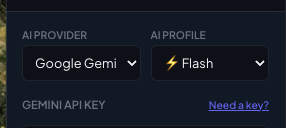
You need an AI API key to use the program. These are free, but are limited in their speed, and the number of queries per day. We support Gemini, ChatGPT, and Claude. Click the Need a key? link for instructions.
"To keep the app a one-time purchase with no monthly subscriptions, FindPlace uses your own private, free Gemini key. It takes 30 seconds to get one from Google, and it ensures your ongoing AI usage costs exactly $0."
Note that my Apple versions are fully signed and notarized by Apple, but Windows signing certificates are very expensive, so the Windows version is unsigned.
When you try to run the Windows version, you will get a popup saying:
Microsoft Defender SmartScreen prevented an unrecognized app from starting. Running this app might put your PC at risk.
Click More Info, and select Run anyway
Here is advice on which AI platform to use, and how much it costs.
Where should you put your photos?
Once you start the program and load in your AI API key, you select the photo folder and Find Place presents you with this screen:
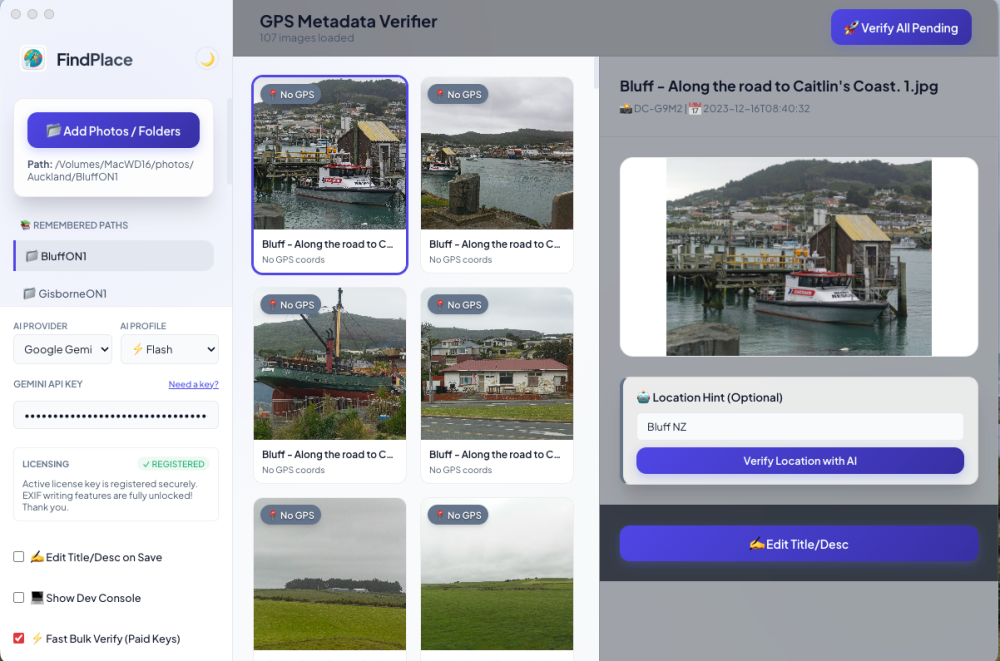
Note that I picked a photo with something identifiable (the ship). The "Buff along the Road" image will probably just return the hint, because there is no unique image in the picture. After you ask the AI to do its thing, you get:
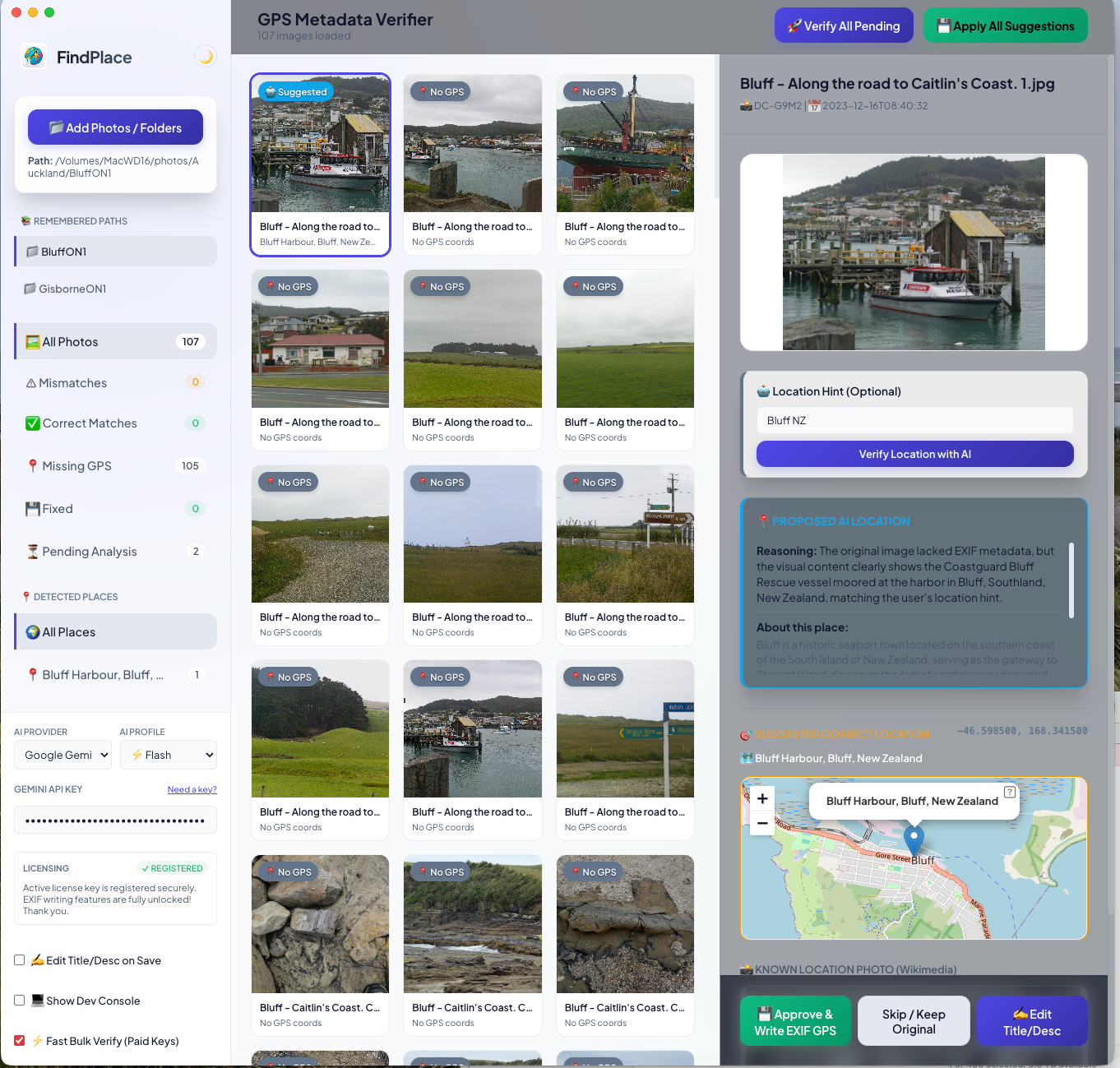
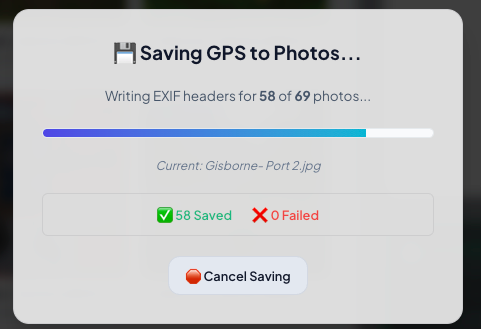
Notice that it has found the exact location, displayed it on a map, and also displayed a known photo of the site (off screen). All of this allows you to verify the location. You can then use the location information to edit the title and description, and to finally approve and write the GPS and Title to the photo's EXIF data.
There is a bulk identify feature. Clicking the top-right button launches this:
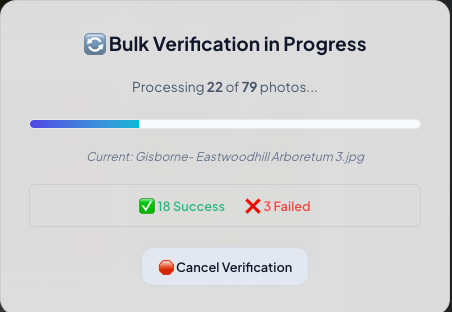
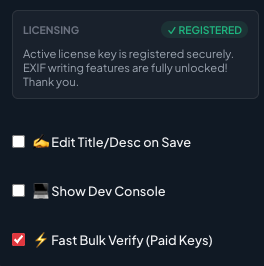
Verification can take some time, but you can go get a cup of coffee while it works. However, it will use a faster AI model if you have a paid AI key. In this case, check the box at lower-left of initial screen.
You can also run more than one FindPlace window to process multiple folders at once by choosing New Window in the File menu.
Verification failures are due mostly to images that have no geographical clues, e.g., pictures of food or a random roadside. Once bulk verification is performed, you have the option of individually checking each image to approve it, or to accept all suggestions:
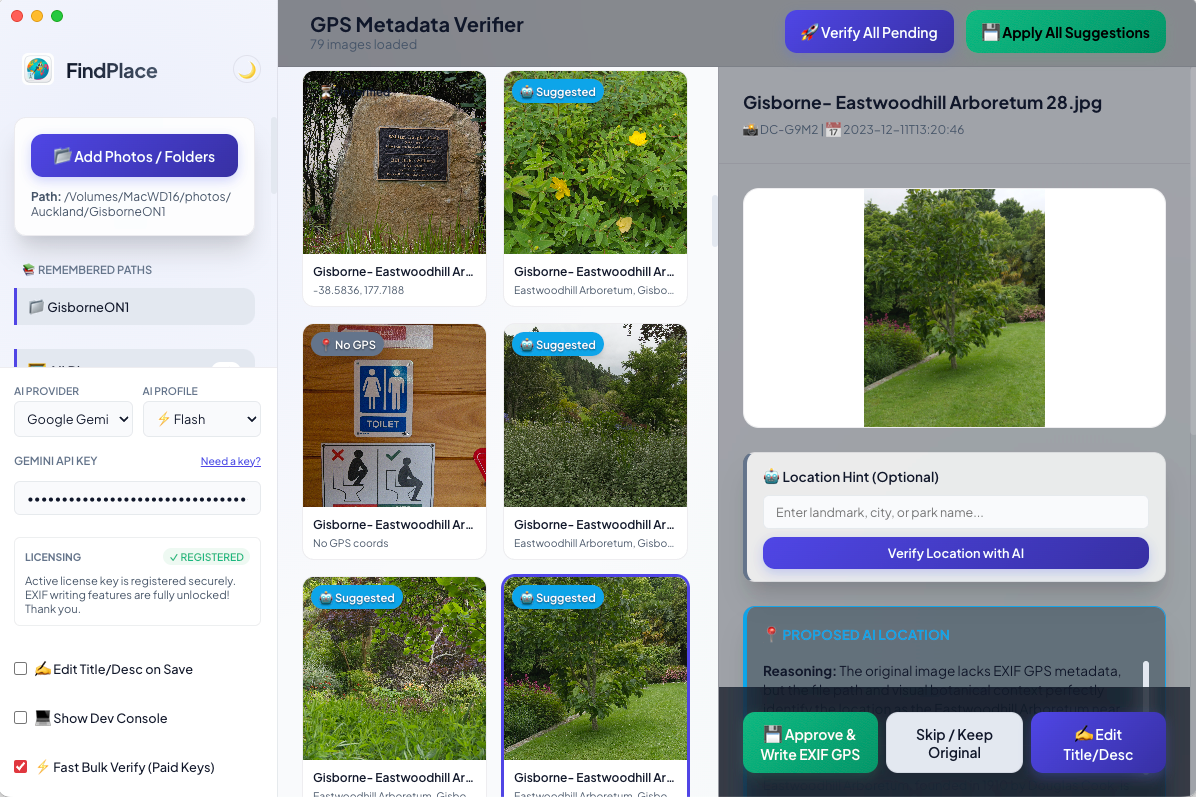
I have also added a light/dark theme selector icon to the right of the program name:

The trial version works on MacOS and Windows computers and is fully functional except that it will not write the results to your photo. Please feel free to give me feedback in the comment section below.
I hope that you think that this program is useful and will purchase it via Lemon Squeezy for just $19.99. This includes lifetime updates. Two installs are allowed.
Add new comment